eSign iOS: What It Actually Covers and Why It’s Easy to Get Wrong

Introduction
eSign on iOS is the process of creating, sending, or asking for electronic signatures via iPhone or iPad, instead of automatically equating all features of desktop eSigns to mobile.
This seems like a pretty straightforward concept; but the many issues that must be considered specifically because they are mobile-related make this a common problem point.
Why eSign on iOS Is More Complex Than It Appears
It would be an incorrect perception to consider eSign on iOS as a singular or consistent system. It is actually a combination of the following systems:
- iOS functionalities such as Markup for basic PDF signing
- Dedicated eSign applications with comprehensive signing processes
- iOS version of desktop eSign platforms
A number of people tend to think all eSign solutions work the same way regardless of the platform they are used on; however, this approach neglects the fact that some functions, especially multi-user signing processes, are usually not available or harder to perform on mobile.
The user who signs on iOS should select a solution for their needs depending on the complexity of the document being signed.
Major Areas of eSign on iOS
Native iOS Signing Capabilities
Rules Governing
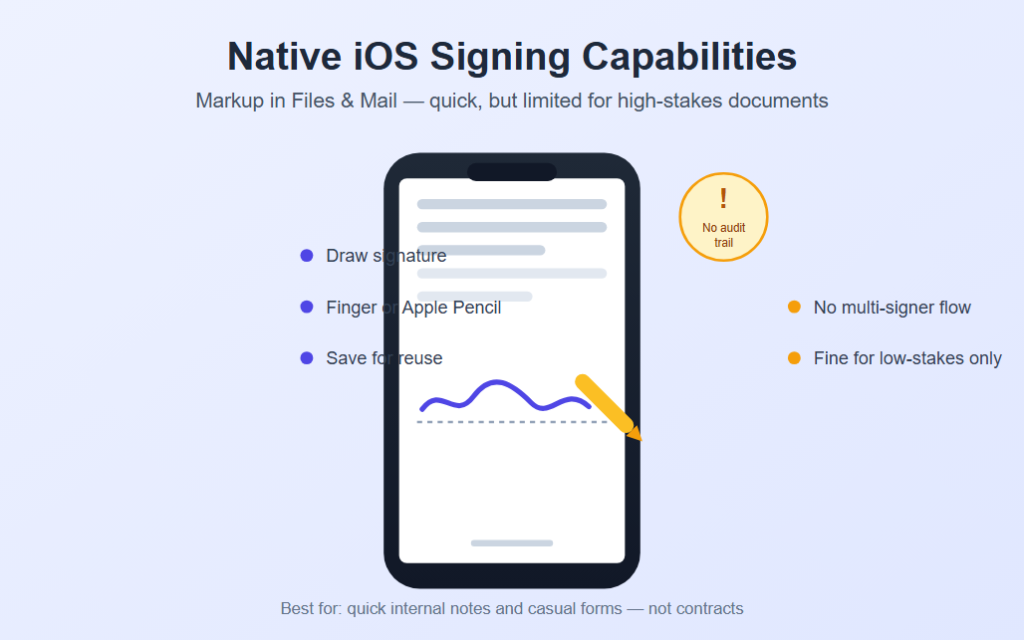
- Signing a PDF using Markup within the Files or Mail application
- Drawing your signature using your finger or Apple Pencil
- Storing signatures for future use
The use of Markup only for business document signing is one of the most common constraints since it could lead to:
- Lack of an audit trail or any verifiable information related to the signature
- Inadequate provisions for multiple signers or sequential signing
- Documents without the required level of integrity for more critical dealings
Dedicated eSign Apps
eSign applications that have been developed specifically for iOS generally provide better functionality that demands the installation of the application to complete the process of signing in a proper manner.
Dedicated App Features Often Include
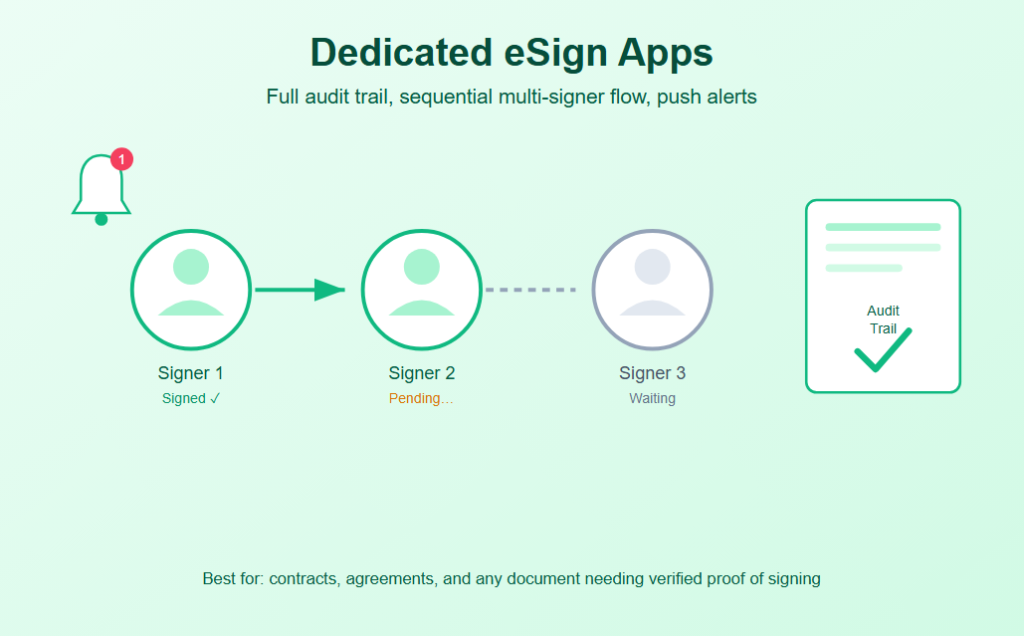
- Full audit trail and evidence generation for verification
- Supporting multi-signers and sequential signing on mobile devices
- Push notifications for signing request pending
Mobile-Optimized Platform Access
The handling includes not only the dedicated applications but also the rising number of mobile-friendly web support for the use of the complete eSign services such as Adobe Sign or DocuSign.
Those Mobile Experiences Usually Vary in Many Respects Including
- Comparison with the desktop version feature parity
- Navigating difficult documents through small screens
- Off-line signing in case of lack of connectivity
Apple Pencil and Touch Signature Quality
eSign on iOS can usually take advantage of:
- Better pen-based signatures with the help of Apple Pencil as opposed to finger-based input
- Pressure sensitivity resulting in a better simulation of a handwritten signature
- Zooming and precision tools for properly signing densely formatted pages.
The signing process quality varies based on the device and input methods used by the signer.
Security and Biometric Authentication
Some measures need to be observed while implementing eSign on the iOS platform, which include the following:
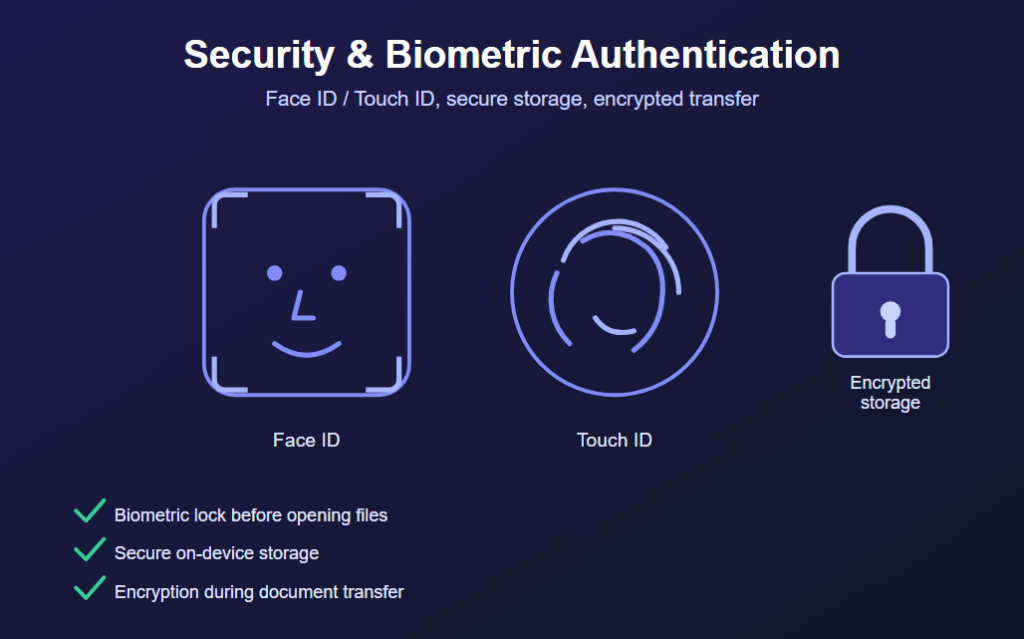
- Face ID and Touch ID authentication before viewing confidential files
- Safe application storage of documents awaiting signing
- Encryption during document transfer after signing
These measures must be put in place because mobile phones pose different challenges to that of the desktop environment.
Why eSign on iOS Creates Friction Even With Capable Tools Available
It is rare that one will face problems with signing an iOS device because Apple devices do not have the necessary tools for doing so.
This can be because:
- People use simple Markup when signing documents that need better verification.
- Complicated multiple-page documents are hard to read on a small device screen.
- Notifications for signatures go unseen, thus causing delays in the signing process of documents.
How to Choose the Right eSign Approach on iOS
Matching the Tool to Document Stakes
People and organizations can save their Markup capabilities for native use on documents which do not require an official audit trail.
iOS eSign Practices Supporting Reliable Signing
There are certain things that make mobile signing much easier and include:
- Use of eSign applications on documents that need verification and audit trails
- Activation of push notifications so as not to miss out on any pending signatures
- Use of Apple Pencil whenever possible
Testing the Mobile Signing Experience
When companies send documents for signing, the following tests are performed:
- Document display and review on a mobile device
- Multi-signer processes working on iOS
- Signers’ experience completing the procedure on a phone
Performing periodic tests allows companies to ensure that signers will be able to complete the procedure of signing without any problems.
Common eSign iOS Mistakes
Dependence on simple PDF Mark-up for agreements where an audit trail is needed.
Sending Documents Poorly Optimized for Mobile Review
Signature requests made on lengthy, detailed documents without taking into account how hard these will be to read on a small screen.
Ignoring Notification Settings
Lack of activation of signature request notification resulting in delayed or forgotten signing.
Poor Security Configuration
Lack of consideration for:
- Biometric authentication to access sensitive documents
- Secure storage of signed documents on the device
- Encrypting the transfer of signed documents
A bad security setup could compromise sensitive signed documents if the device gets lost.
Bottom Line
eSign on iOS is rather diverse and takes into account many factors including the use of native capabilities, separate applications, mobile platform capabilities, quality of input, and security measures.
Given the number of conflicts that can occur as a result of assuming desktop capabilities will work the same way on mobile, it would be better if the right tool was chosen depending on the significance of the document.