OneNote for Project Management: How to Set It Up and What It Can’t Do

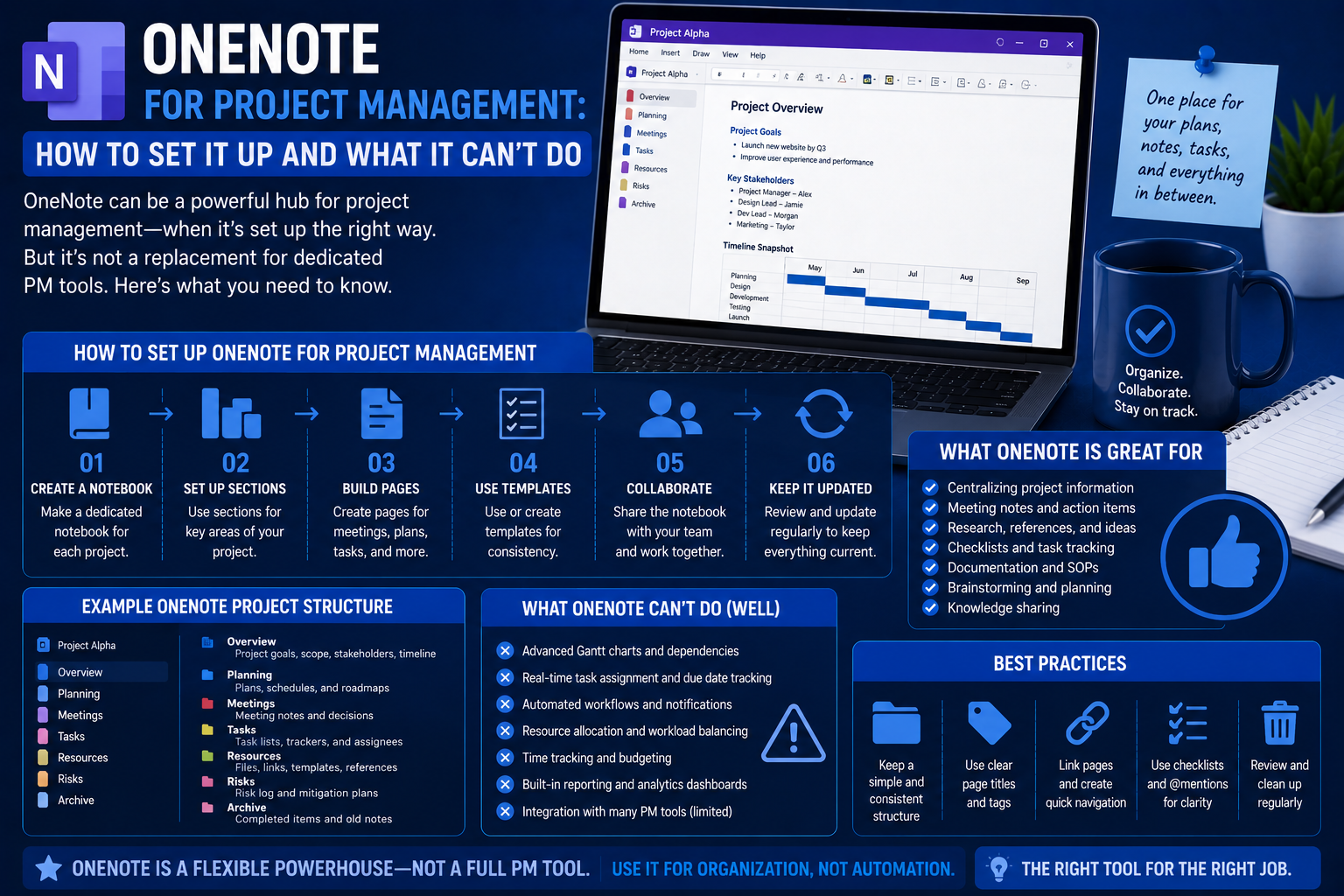
OneNote is not a project management software application. However, for users who are already deep within the Microsoft environment, OneNote can do more project management than many people give it credit for, provided that they take care in setting it up. Let me show you how OneNote can be used for project management and when it fails.
Table of Contents
- Why Use OneNote for Your Project
- How to Organize OneNote for Project Management
- Templates That You Need to Have
- Weaknesses of OneNote
- When It Is Better to Use OneNote Than Another Project Management App
- Conclusion
Why People Use OneNote for Projects
The main reasons why the users manage their projects via OneNote are as follows:
- Users already have access to Microsoft 365 and they do not need anything else.
- Projects require a lot of writing and references rather than complex dependencies.
- Users work alone or in a very small team where the tasks are not assigned formally.
- Users want a more flexible and unstructured space instead of task-based one.
OneNote will not substitute such solutions as Asana or Monday.com in case of complex work organization by the team. However, as a project management tool for oneself or documentation tool for small projects, it is better than it seems at first glance.
How to Structure OneNote for Project Management
Getting OneNote to serve its purpose in the project relies on taking the structure in hand with deliberation.
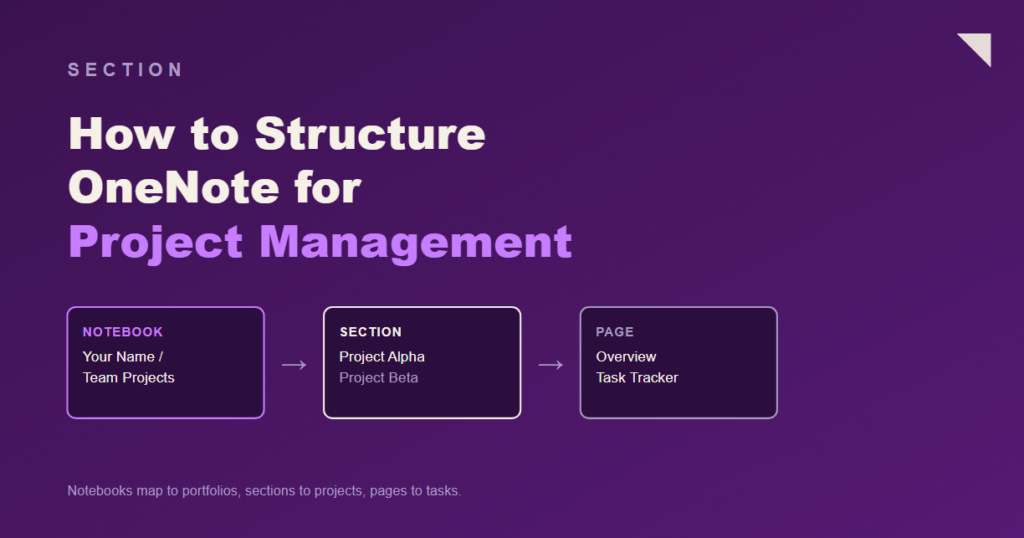
Notebooks → Sections → Pages
Maps to:
Portfolio → Project → Task/Document
A practical structure:
Notebook: [Your Name or Team Name], Projects
Section: Project Alpha
- Page: Project Overview (Objectives, Stakeholders, Timeline Highlights)
- Page:Task Tracker (manual list with task, responsible person, date, status)
- Page:Meeting Notes (running notes with dates)
- Page: Reference and Resources (documents, links, resources)
Section: Project Beta
- Same structure
Section: Templates
- Page: Project Kick-off Template
- Page:Status Report Template for Weeklies
One notebook per team/portfolio, one section per project is easy to navigate through and easy to find information.
Key Templates to Set Up
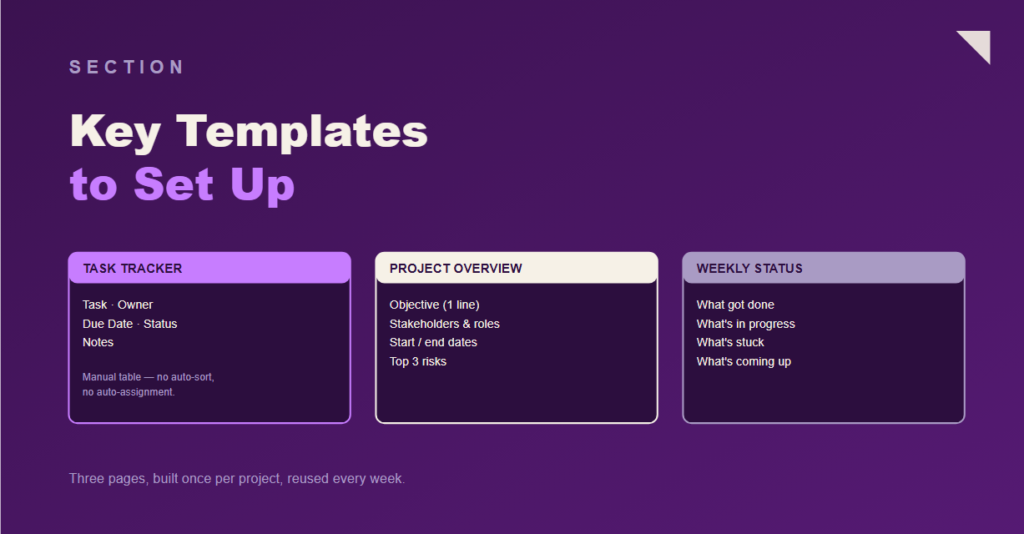
Task Tracker Table
Make a very simple table at the Task Tracker page with those following columns:
- Task Name
- Owner
- Due Date
- Status (Not Started / In Progress / Done)
- Notes
OneNote does not automatically sort and assign, so this is dependent upon the users’ maintaining this manual update.
Project Overview Page
Each project page should be started with one-page synopsis including the following topics:
- Project Objective (one sentence)
- List of key stakeholders and role
- Date of start and end
- Top 3 risks/dependencies
- Link to main task tracker page
Weekly Status Page
A running page with dated weekly entries. Entries cover:
- What got done
- What is being done
- What is stuck
- What’s coming up next
And that’s your project history, no further work required.
Where OneNote Falls Short
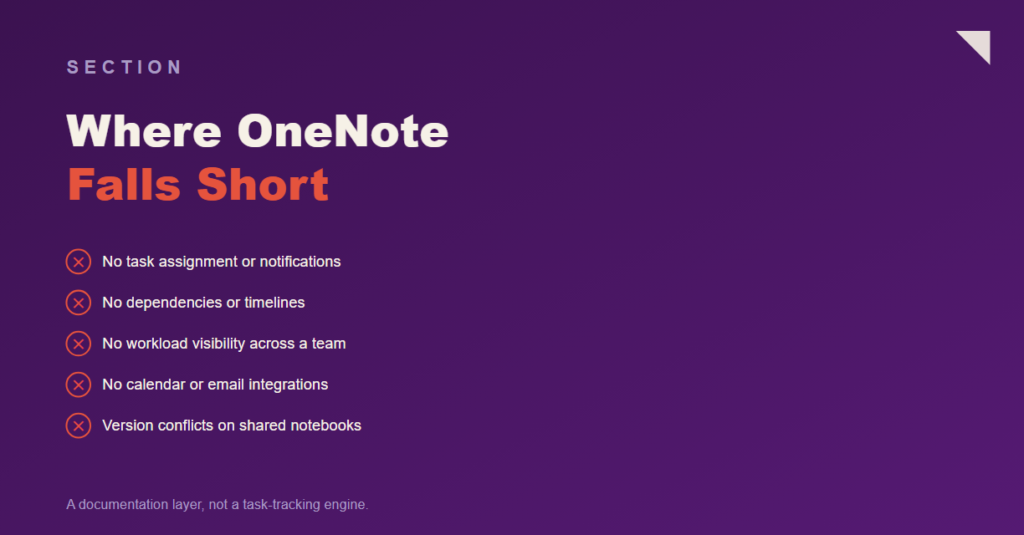
OneNote isn’t a project management tool, and the limitations are clear:
No Task Assignment or Notifications
One can simply put names next to each task but there is no option for OneNote to notify such individuals. If you care about accountability, this is a huge hole to fill.
No Dependencies or Timelines
There is no Gantt chart, no logic like “task B is scheduled after task A,” no timelines whatsoever. It is going to be a nightmare for those working on sequential tasks.
No Workload Visibility
When there are multiple team members working on a project, there is no possibility to find out who is loaded and who has room left.
No Integrations
OneNote does not integrate with calendar, email and any other application in order to keep data consistent.
Version Conflicts
Synchronizing while editing simultaneously in shared notebooks could pose some problems, especially when people are working on the same page at the same time.
When to Use OneNote vs. a Dedicated PM Tool
Use OneNote When:
- You are organizing your work and mostly need a well-organized reference base.
- Your “project management” system is more like project documentation, notes taken in meetings, references, and decisions made.
- You are working in a Microsoft 365 world and you cannot afford any other tool
- Projects that you are running are small-scale and quick (few weeks, one/two people)
Use a Dedicated PM Tool (Asana, ClickUp, Monday.com) When:
- Assignments should be assigned to particular people with deadlines.
- You have tasks dependent upon each other.
- You need to have the timeline/Gantt chart view.
- You have more than 2-3 people involved in the project.
Final Thoughts
It is entirely possible to use OneNote for managing projects, but it is more effective as an organized layer of documentation rather than a task management platform. The people who can benefit from its use are those who want a place where all their project data, sources and statuses will be neatly organized rather than those who look for a solution for project task tracking and management. Those who have chosen to work within the Microsoft 365 environment and whose projects are not overly complicated should try using it.